Wrong label
The whole image is regenerated because the text is baked into the picture.
SciNest generates diagrams and images with editable layers — text labels, shapes, arrows and regions stay independently accessible after generation. Unlike pixel-based AI generators like DALL-E or Midjourney where every element is fused into one flat image, SciNest lets you change a label, move an element or revise a selected area without regenerating the entire visual. Export and reuse across projects.
AI-GENERATED · LAYERED · STILL EDITABLE
Drag elements, rewrite labels and regenerate only the selected area. SciNest keeps text and supported visual elements editable instead of locking the entire scientific figure into one image.
Windows desktop · Bring your own AI key · Project files stay local by default

THE FLATTENED-IMAGE PROBLEM
Most AI image workflows treat every correction as a reason to redraw the whole image.
The whole image is regenerated because the text is baked into the picture.
A small relationship change forces another full redraw.
A single bad region destroys an otherwise usable figure.
Objects cannot be moved, reordered or reused independently.
SEPARATE ELEMENTS, NOT ONE LOCKED IMAGE
The figure workspace keeps supported visual elements selectable after generation, so one weak part does not force a complete redraw.
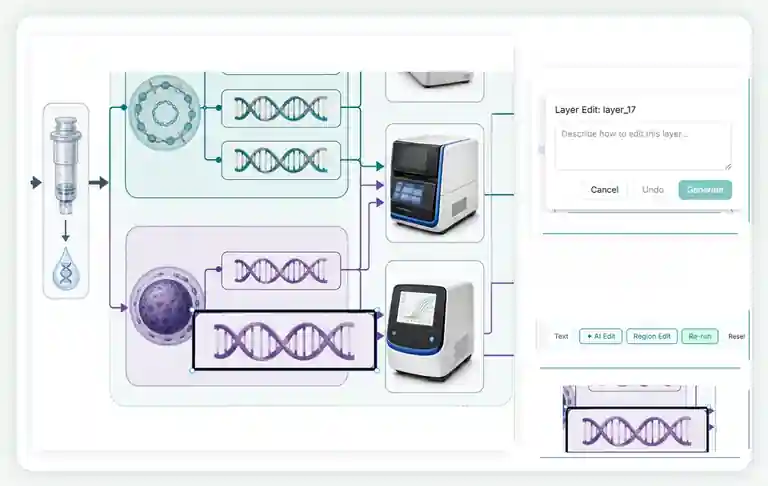
AI WHERE YOU NEED IT
The page explains the current selection workflow without presenting a simulated before-and-after image as product proof. A real paired screenshot will replace this explanation when the same region is captured before and after regeneration.
Choose the specific element or bounded area that needs correction inside the figure workspace.
Give the selected layer or region a focused correction instruction instead of restarting the whole figure.
Keep the surrounding composition and approved scientific relationships unchanged while revising the selected part.
TEXT IS TEXT, NOT PIXELS
SciNest separates editable labels from the generated visual layer, avoiding the common problem of distorted or unreadable lettering inside AI images.
When text is painted into an AI image, correcting one scientific term can introduce new errors across the figure.
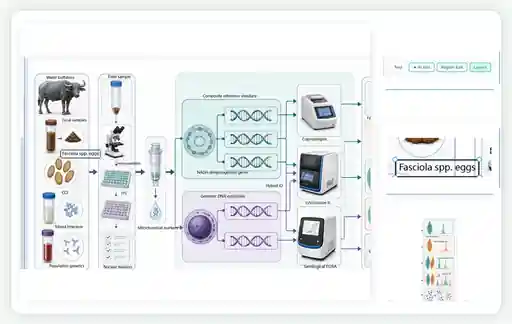
MATERIALS STILL MATTER
Choose the paper, methods, notes, data and reference images that belong to the current figure task.
ONE CONTROLLED WORKFLOW
Bring in the paper, methods, notes, reference images and figure requirements.
SciNest creates the visual structure and separates supported elements into editable layers.
Move objects, change layer order and repair the visual hierarchy without redrawing everything.
Rewrite titles, labels and annotations as normal text without asking an image model to redraw letters.
Select a region, regenerate it with AI and preserve the parts already approved.
FAQ
No. Supported figure elements are kept as separate editable layers so you can move, reorder and revise them.
Yes. Labels are editable text objects rather than text painted permanently into the image.
SciNest separates text from AI-generated visual content. Labels are rendered as editable text, so they are not dependent on an image model drawing letters correctly.
Yes. Select the area or element that needs work and regenerate that part without discarding the confirmed sections.
Yes. Supported layers can be selected, moved and reordered inside the figure workspace.
Yes. Figures remain project assets and can be reused in supported presentation workflows.
Generate a layered scientific figure, move the elements, edit the text and use AI only on the part that needs changing.
Generate an editable scientific figure ↗